Using 1smart.link inside your AI app
How it works
When you ask a question, your AI app asks 1smart.link for the answer from your own account and shows it to you. For most answers you'll see a card: a small 1smart.link panel inside the chat, with buttons. The AI then adds a short summary or points worth noticing.
The cards
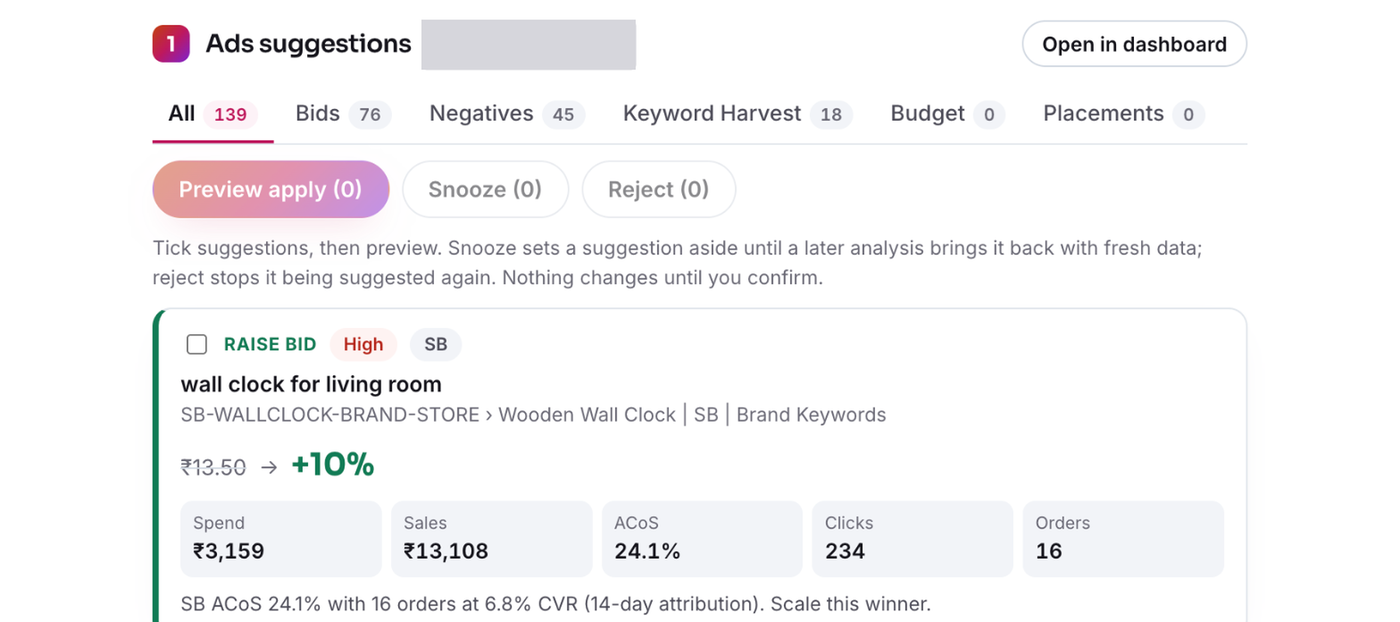
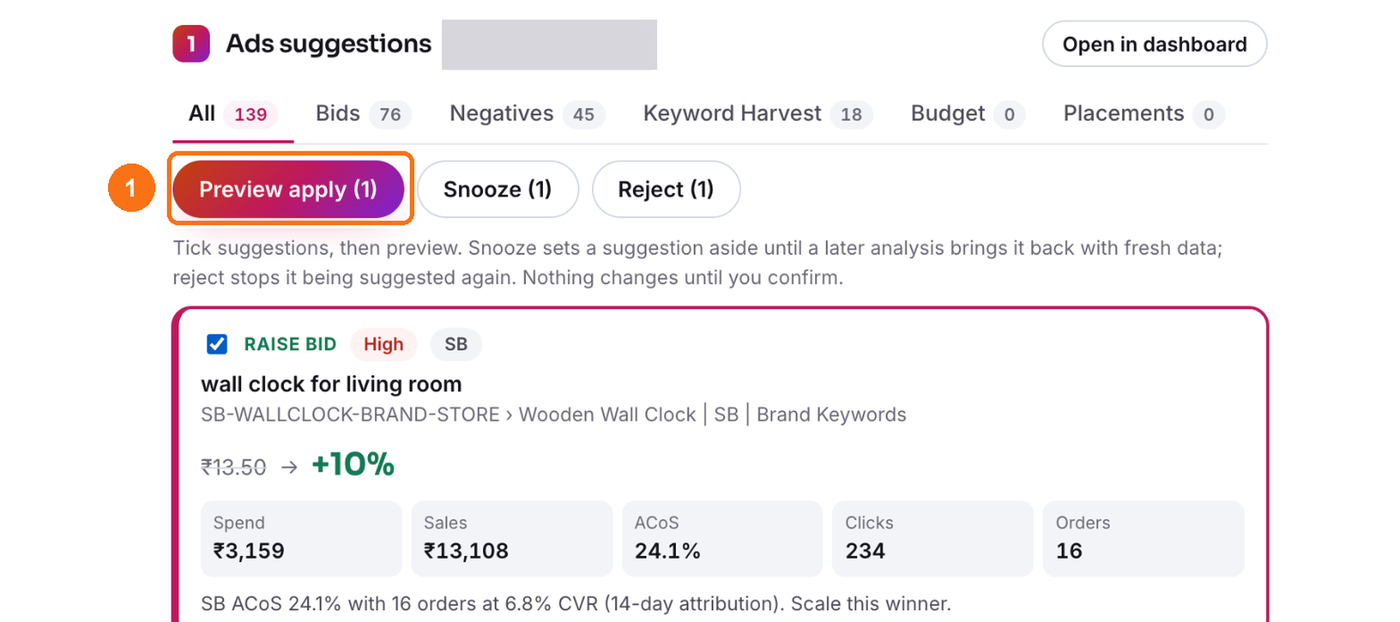
Ads suggestions: your pending suggestions with tabs for each type (Bids, Negatives, Keyword Harvest, Budget, Placements), tick boxes, and Preview apply, Snooze and Reject.
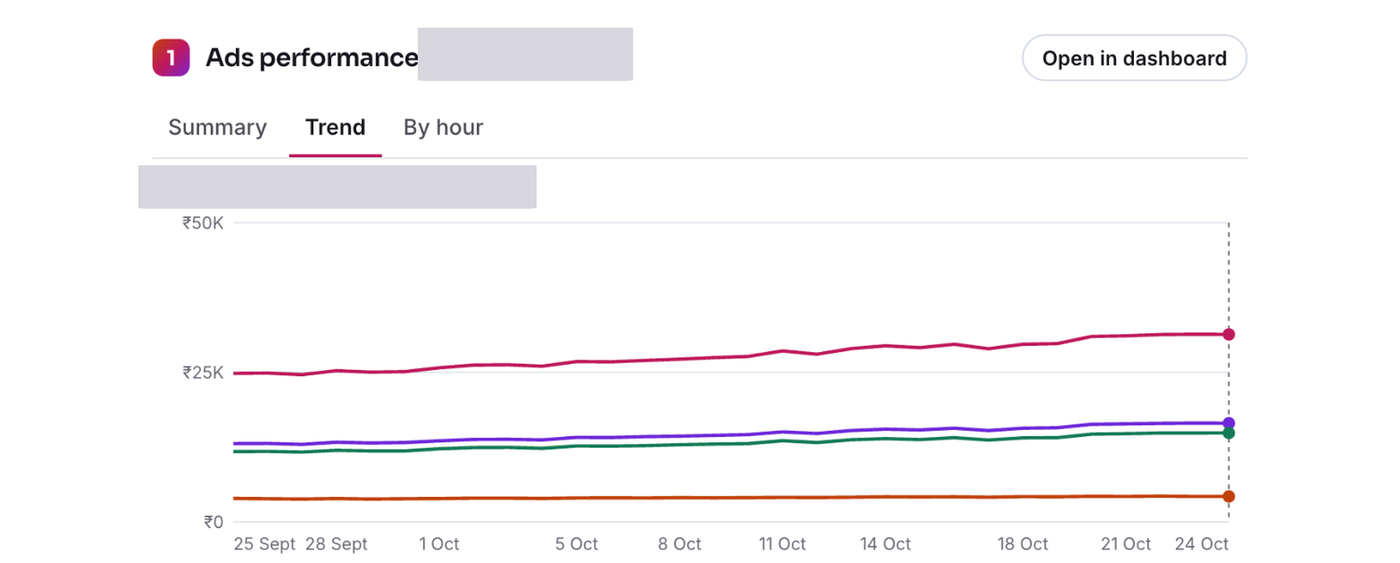
Ads performance: a summary, a daily trend and a by-hour view.
Sales by product: today, yesterday, this month or last month.
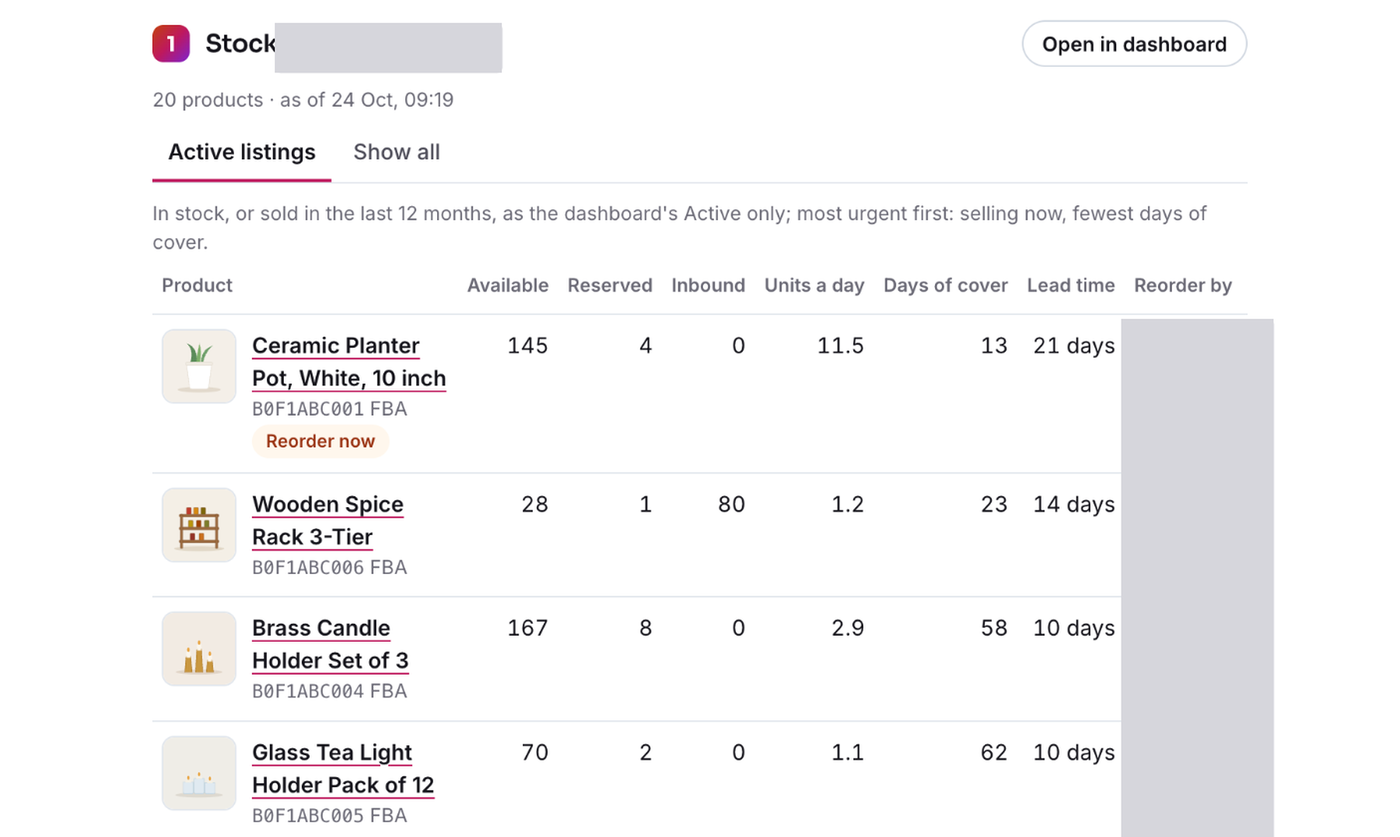
Stock: your active listings, most urgent first, with days of cover and reorder-by dates.
Products and Saved Ideas: from Product Research, with a star to save or remove a product.
Keywords: from Keyword Research.
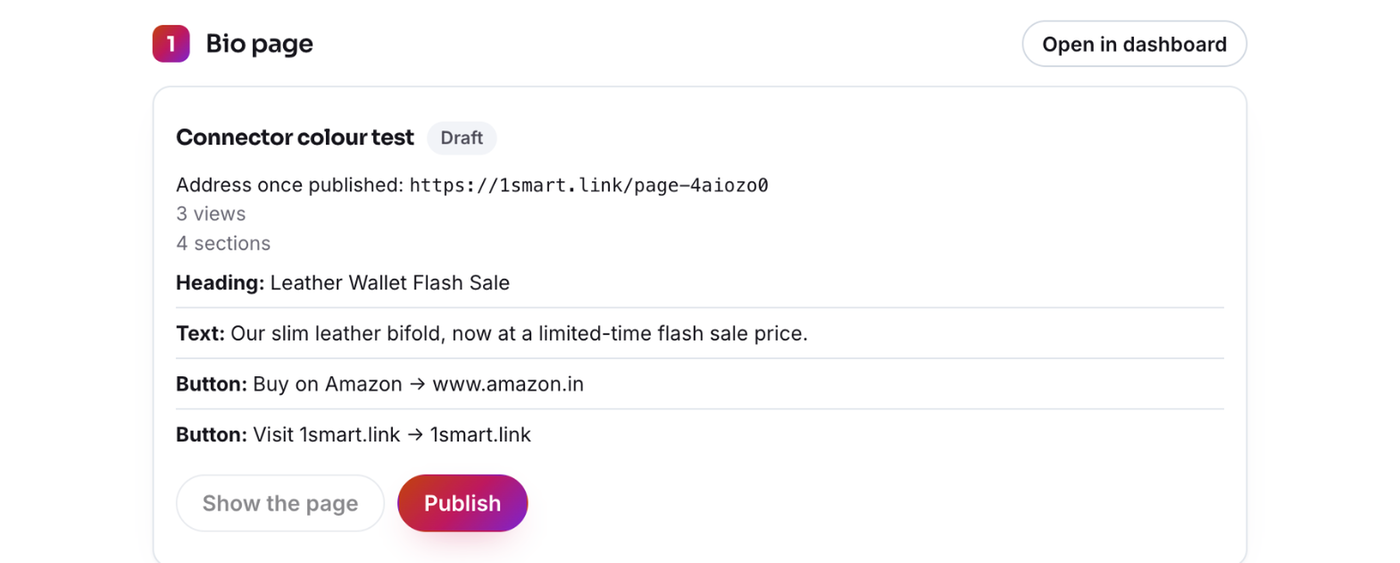
Bio page: the page's details and a real preview of how it looks, with Publish or Take offline.
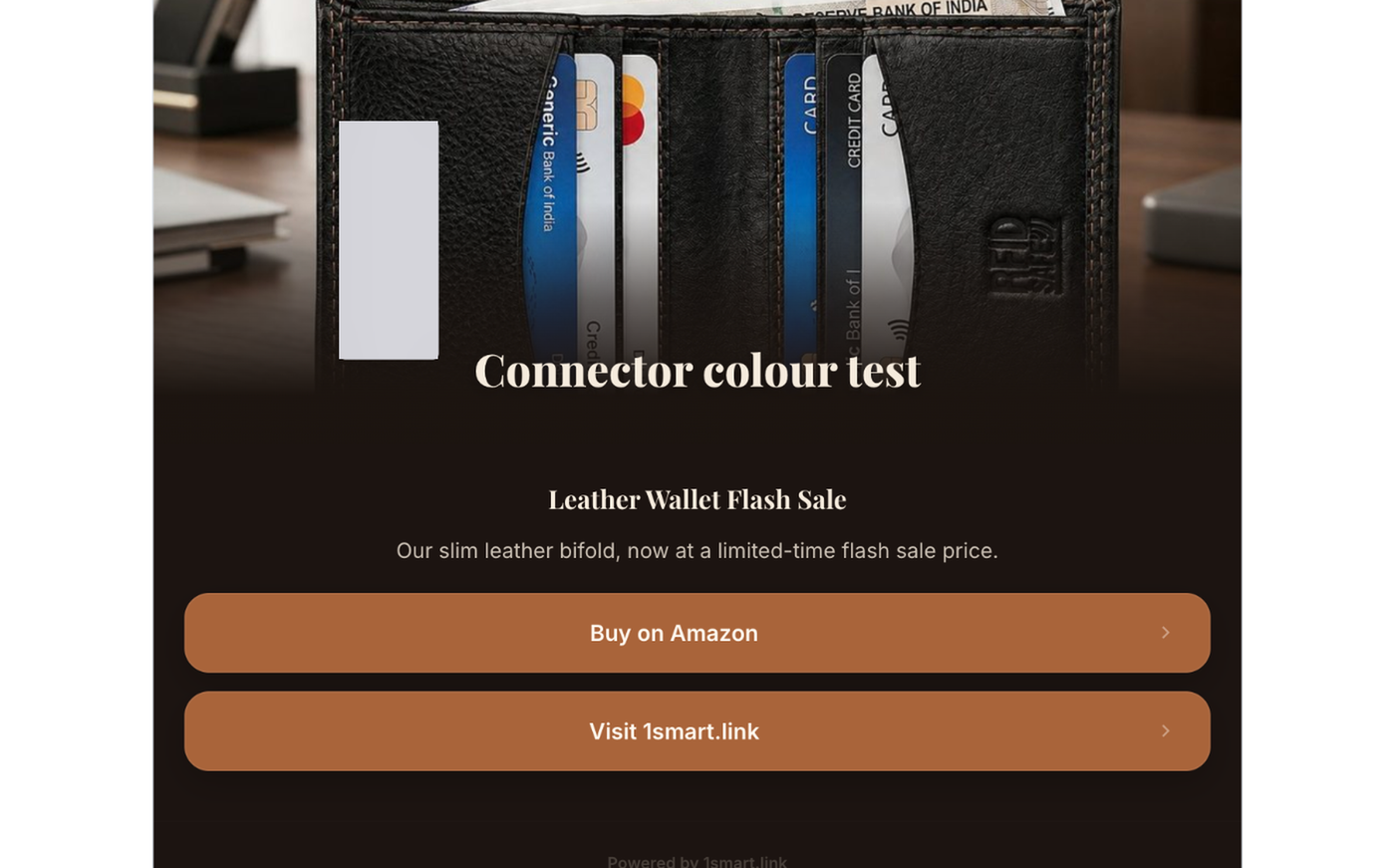
QR code, Short link and Media library.
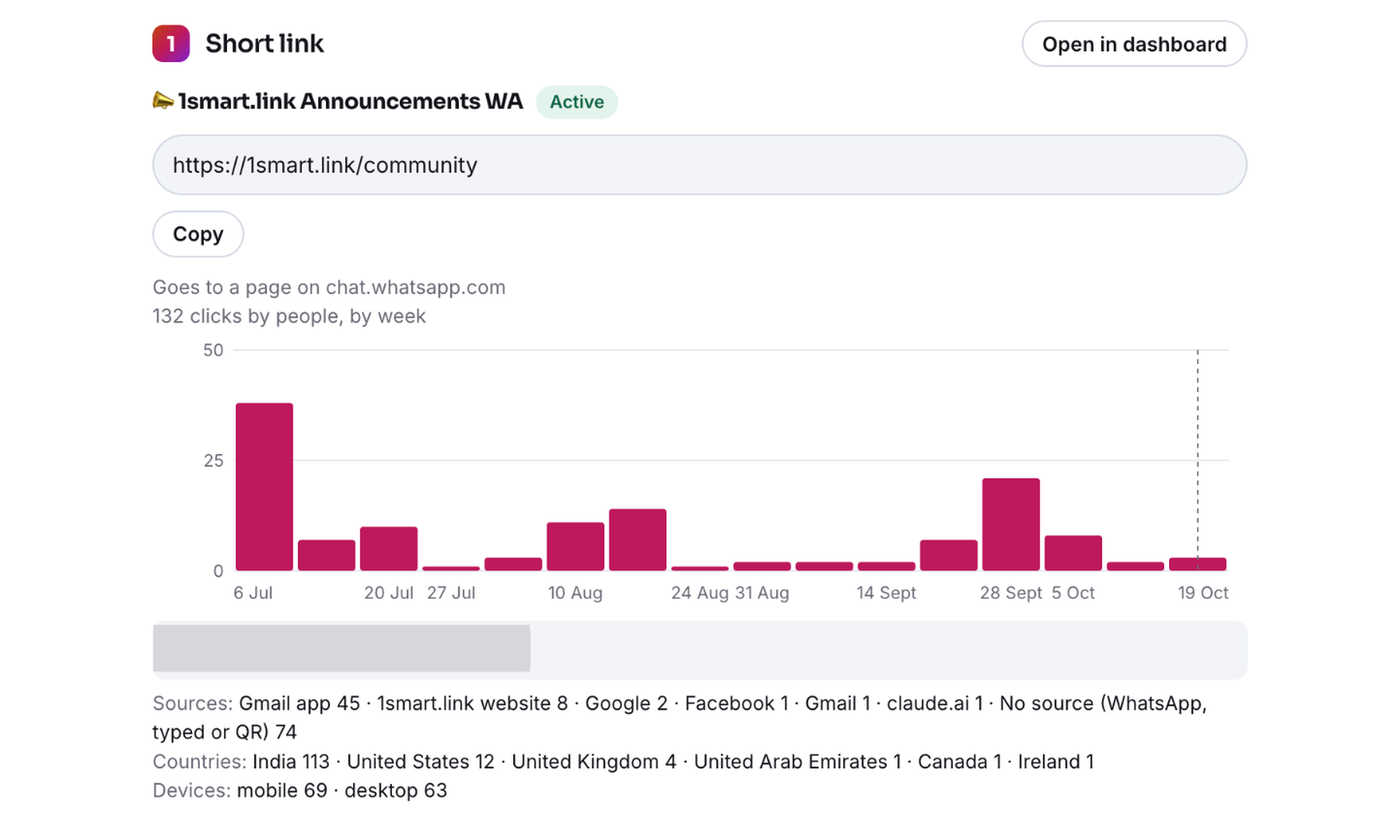
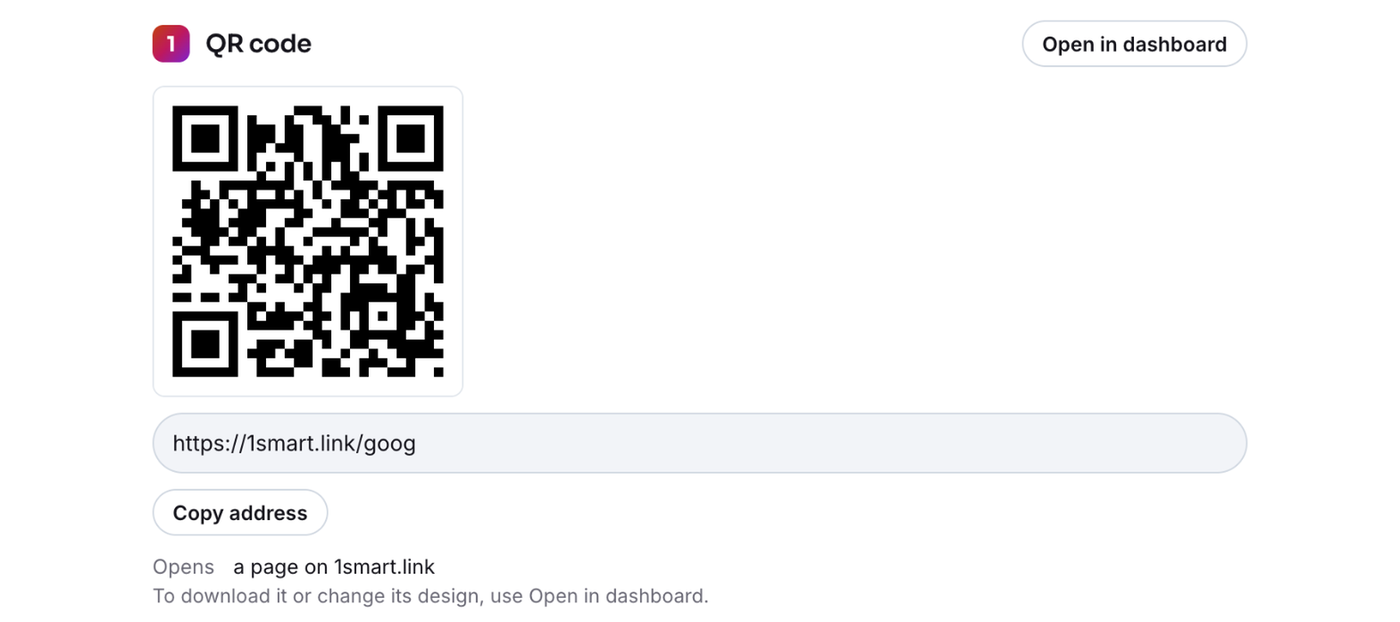
Lists show a few items at a time; tap Show more for the next ones. Every card has Open in dashboard.
Making changes safely
Nothing changes in your account until you confirm. Every change goes through two steps:
Preview: the card (or the AI) shows exactly what will change, item by item. On the Ads suggestions card, tick the suggestions you want and click Preview apply.
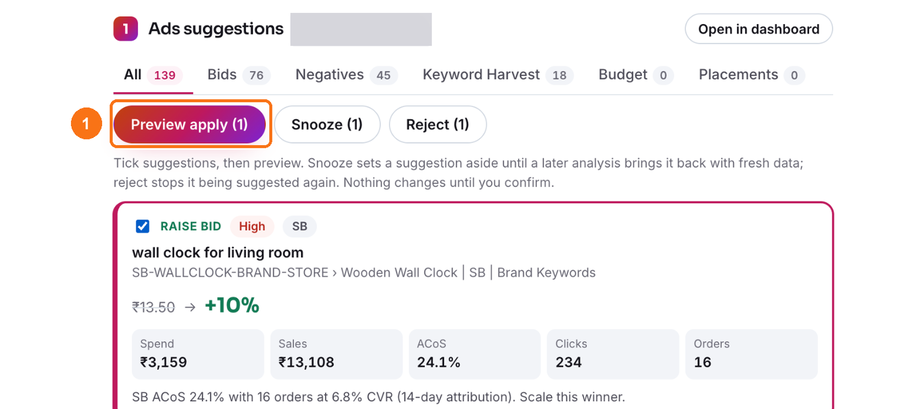
Confirm: you press Confirm apply on the card, or tell the AI yes. Claude asks for a plain yes; ChatGPT shows a code and asks you to type it back.
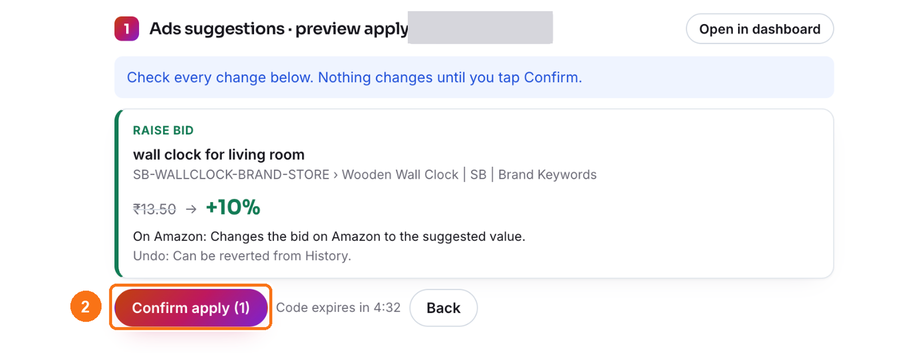
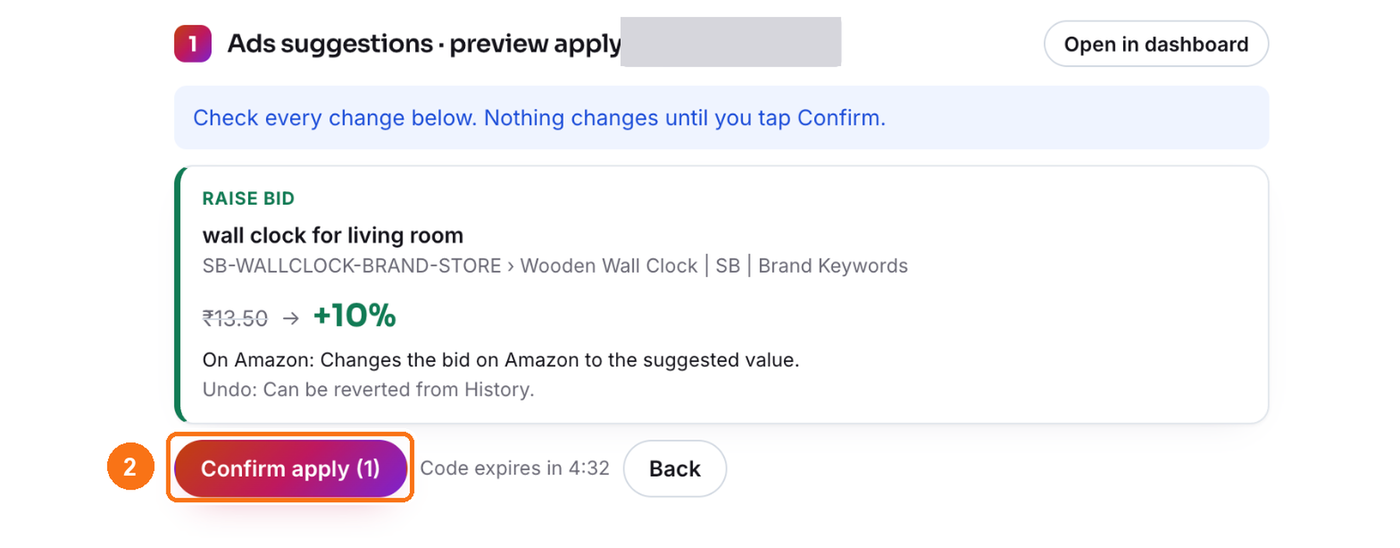
The confirmation lasts five minutes and works once. If it runs out, ask for the preview again. You can confirm up to 100 suggestions at a time.
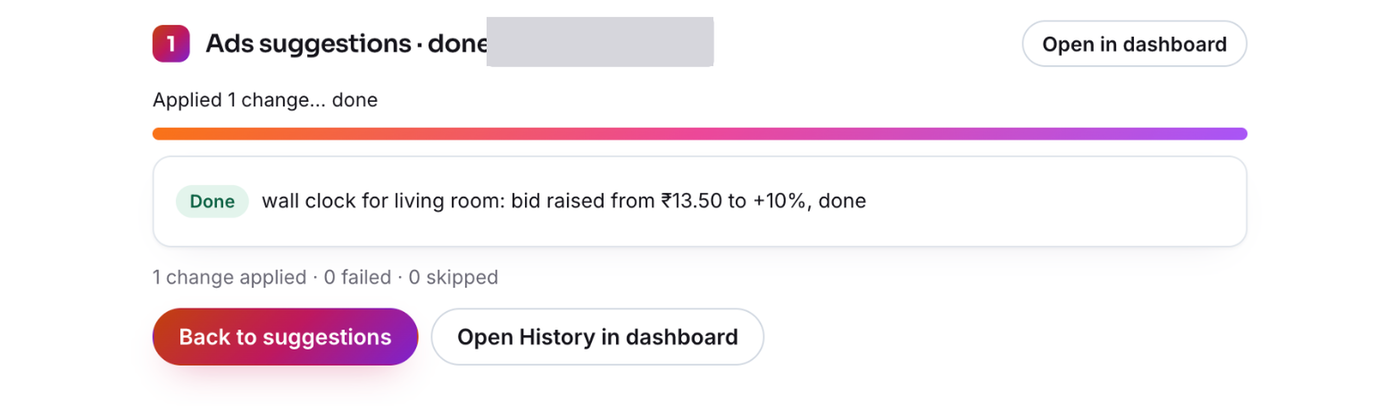
When the change is done, the card shows the result, with Open History in dashboard.
Ads suggestions from the card
Preview apply sends the change to Amazon after you confirm.
Snooze sets a suggestion aside until a later analysis brings it back with fresh data. Nothing changes on Amazon.
Reject stops it being suggested again. Nothing changes on Amazon.
If a suggestion can only be applied in your dashboard, the card shows Apply in dashboard instead.
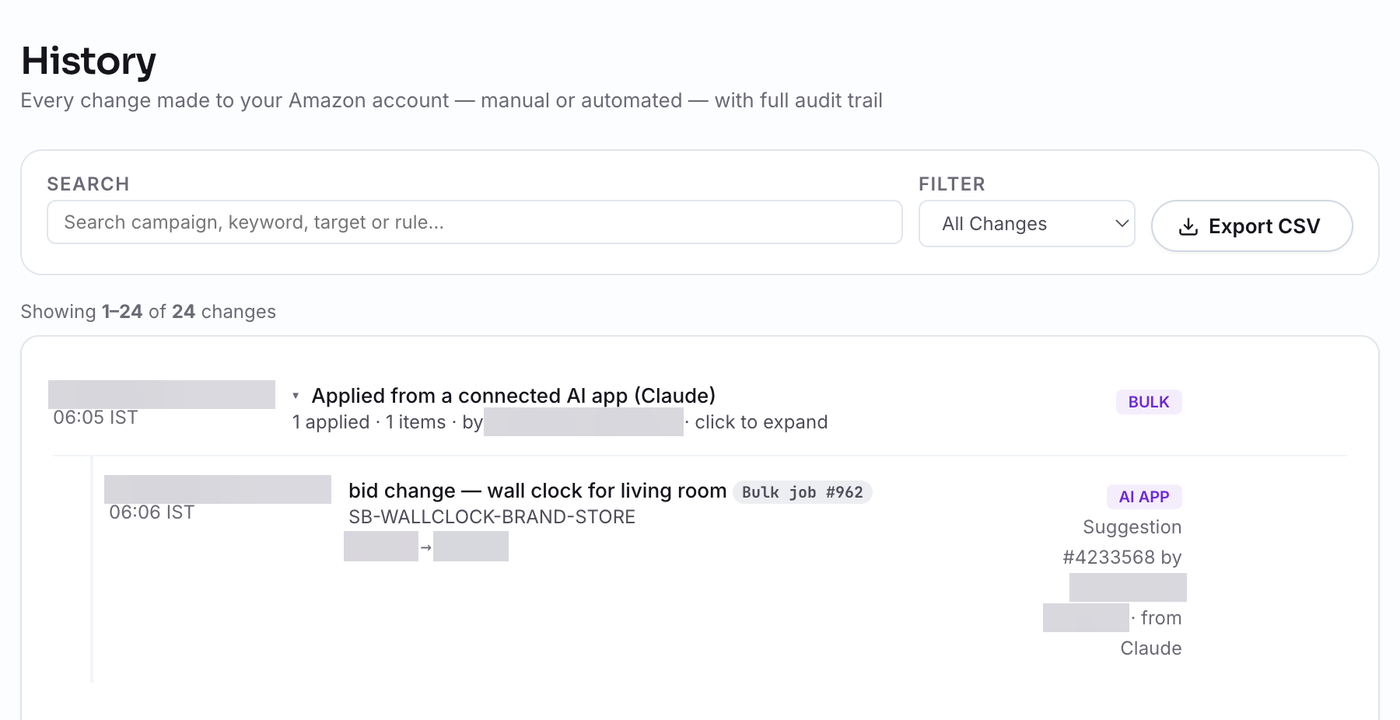
Every change made from an AI app appears in Ads Optimiser → History, marked AI app with the app's name. You can revert a bid change, and restore a snoozed or rejected suggestion, from there.
Links, QR codes and bio pages
Bio pages you create from the chat start as drafts. Publishing a page, taking it offline, changing where a live link goes, or switching a link off always needs a preview and your confirmation.
QR codes can't be downloaded inside the chat; use Open in dashboard to download or restyle them.
Saving a product to Saved Ideas with the star happens straight away, with Undo if you tap it by mistake.
What it can never do
Delete anything.
Change your plan or billing.
Connect, disconnect or change your Amazon connection.
Some special link types are managed in your dashboard only.
How fresh the figures are
Ads figures follow Amazon's reports, which arrive one to two days late.
Stock comes from the daily morning stock refresh. Merchant-fulfilled listings show only as in or out of stock, checked weekly.
Sales: the most recent days are estimates until Amazon settles them.
Product Research and Keyword Research figures are estimates from our regularly updated Amazon India catalogue and keyword data.
Times are shown in India time. Only amazon.in accounts are supported.
Limits
Each answer lists up to 25 items; ask for the next page for more.
Product Research uses the same daily searches as your dashboard: each different combination of filters, or different set of products looked up, uses one search. Paging and re-sorting don't.
Daily limits reset at midnight India time.
Your data and privacy
The app only sees your own 1smart.link account, and only what you connected it for. No buyer details are ever sent.
Your AI app handles the answers under its own terms. Switch off the setting that lets your chats be used to train AI models in your AI app. In ChatGPT it's called Improve the model for everyone, under data controls.
Disconnecting
To disconnect, go to Account → Connected AI apps in 1smart.link and remove the connection. Removing 1smart.link inside your AI app may not end its access on our side, so always remove it here. Changing or resetting your 1smart.link password also ends every connection.