Connect 1smart.link to Claude or ChatGPT
What this does
1smart.link can connect to Claude and ChatGPT. Once connected, you can ask your AI app about your own 1smart.link account in plain words, such as your pending Ads suggestions, your stock, your sales or your short links, and see the answers as cards inside the chat. If you allow it, you can also make changes from the chat, always with a preview first.
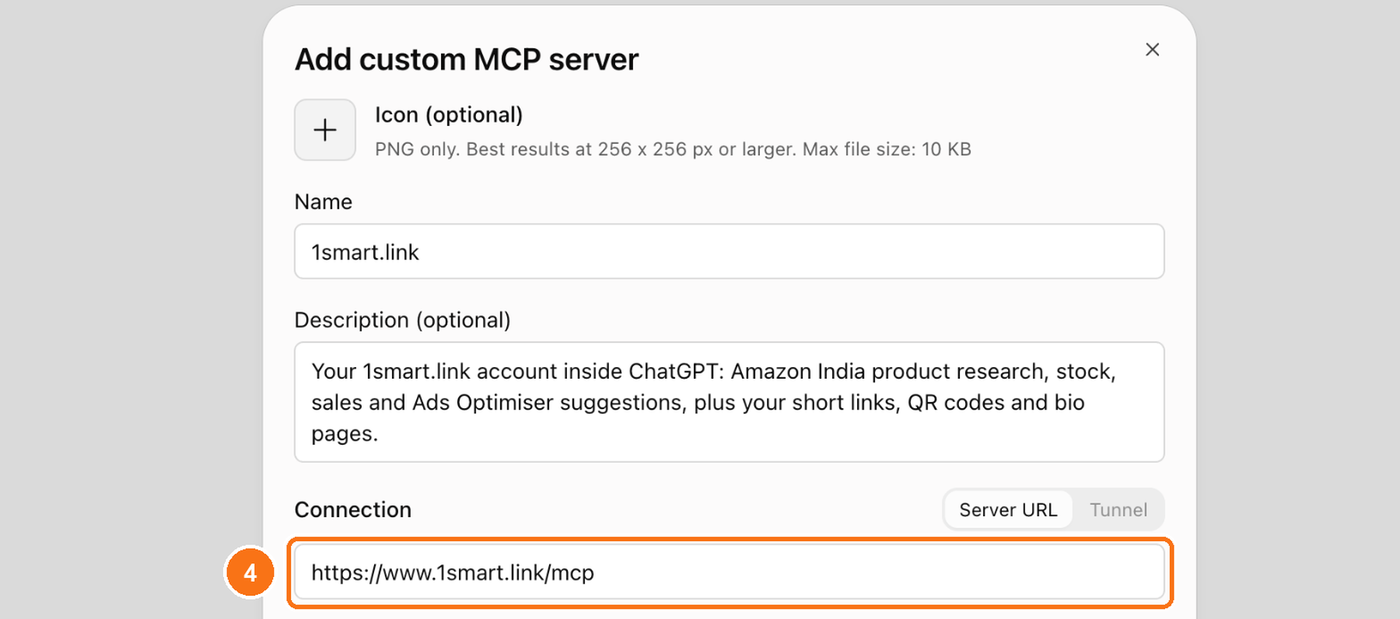
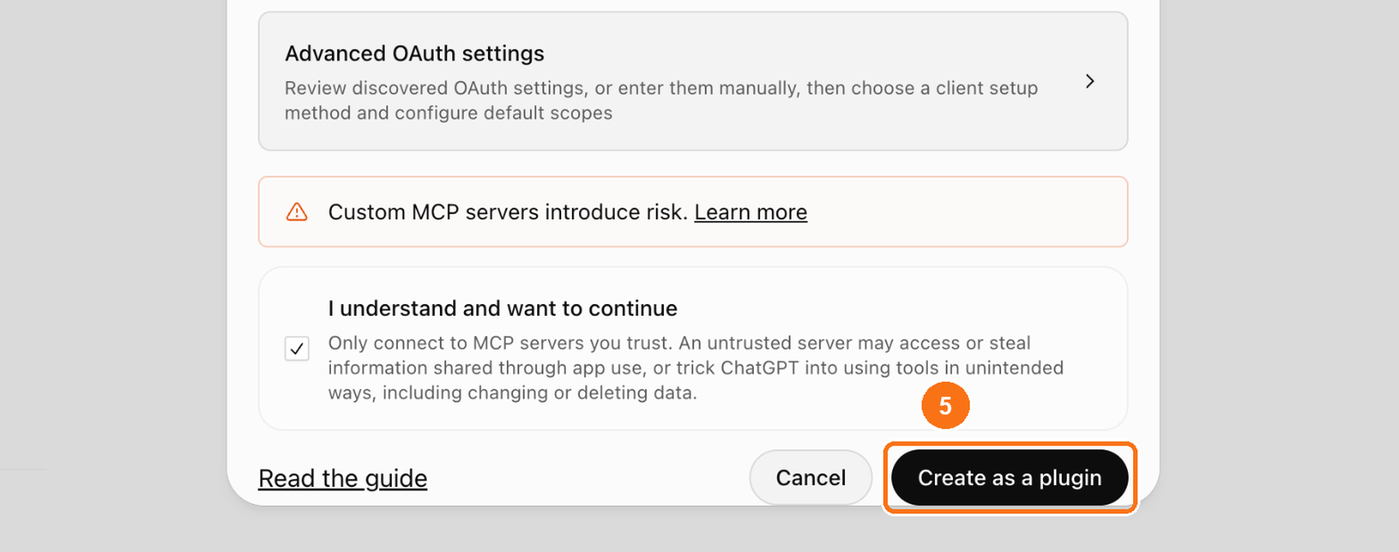
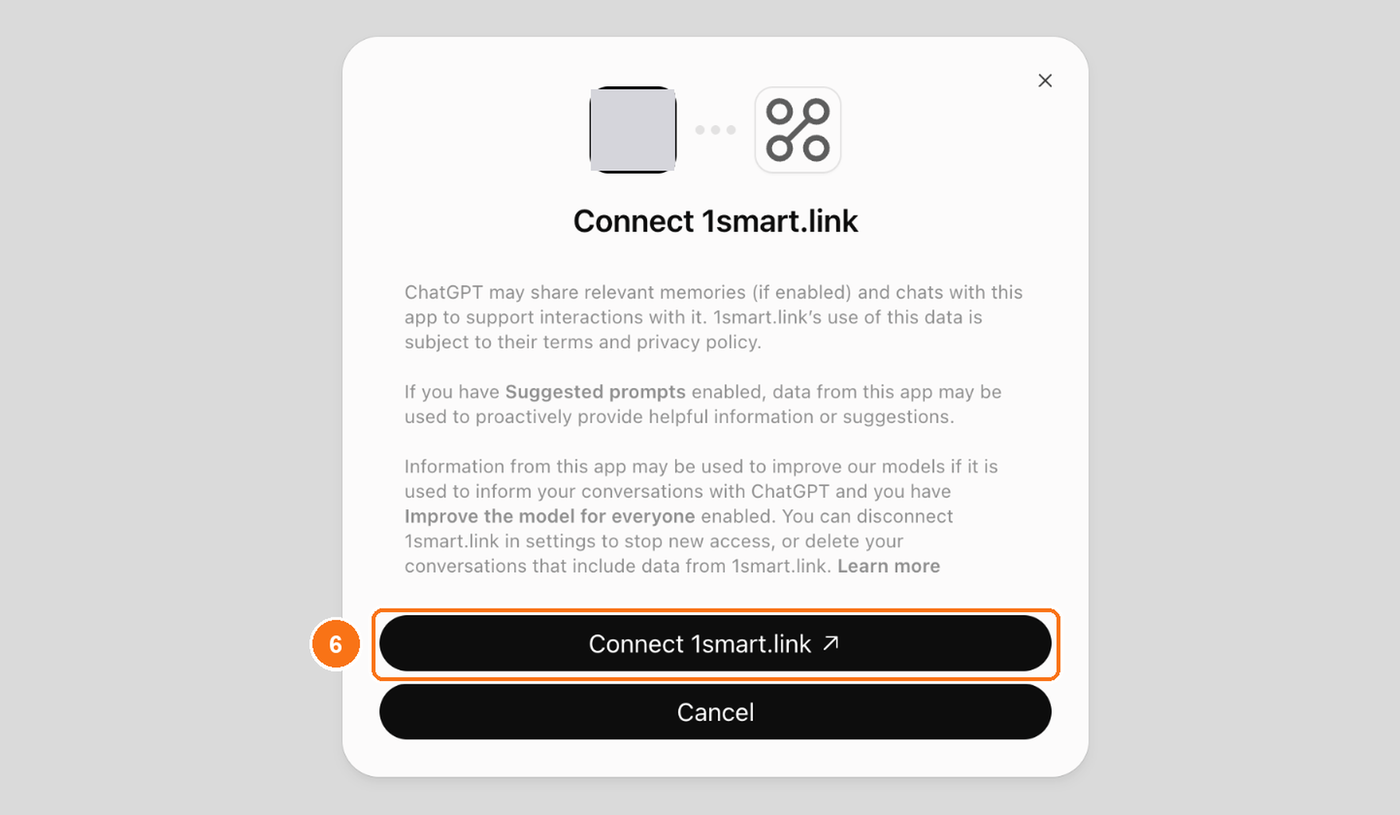
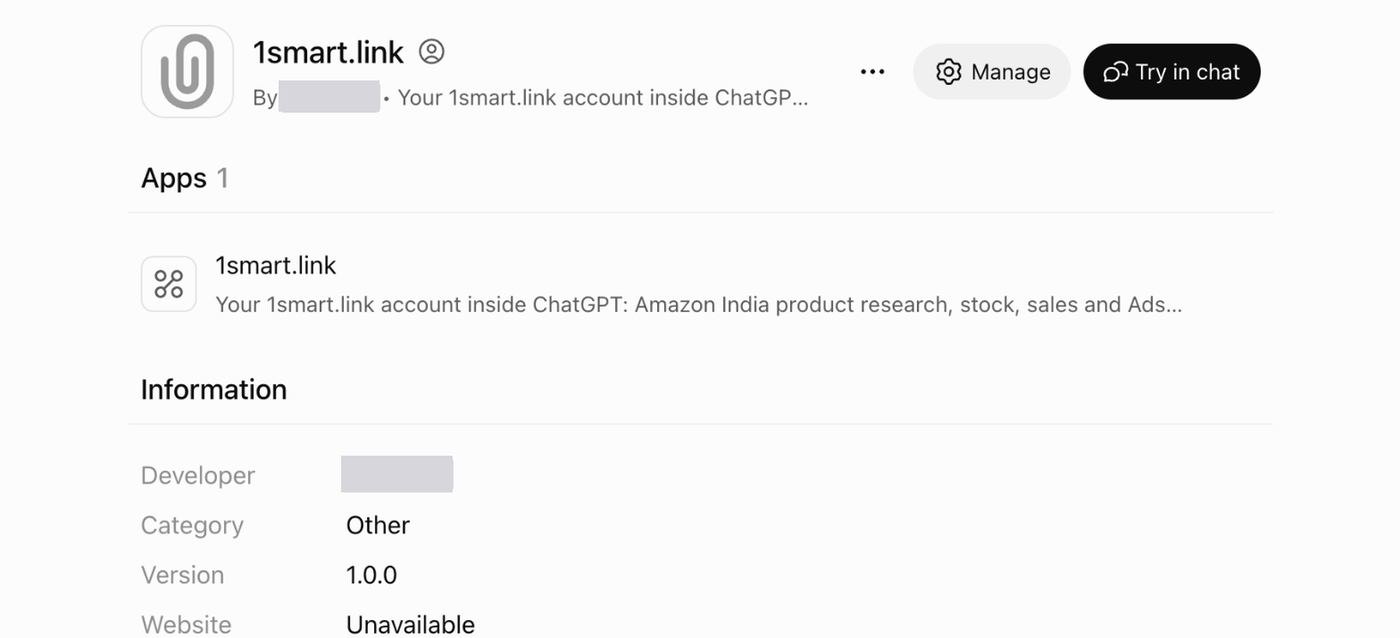
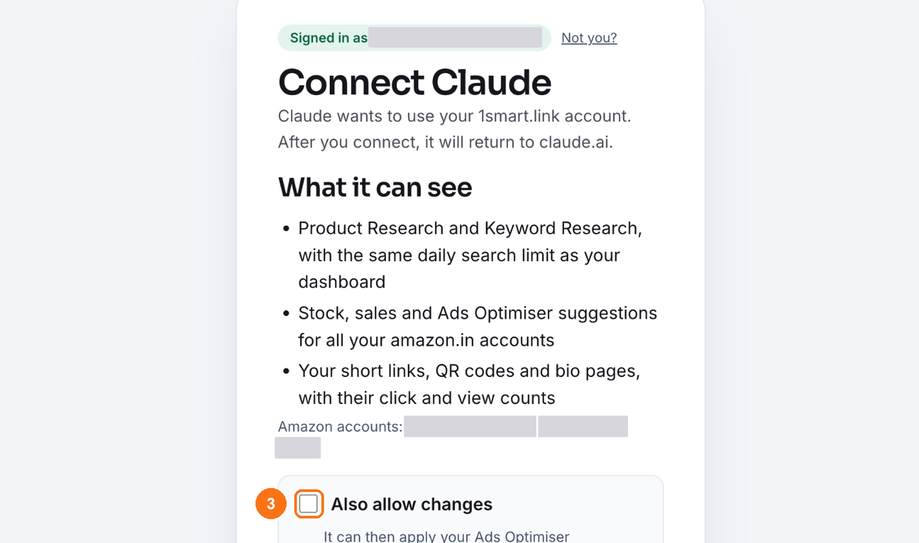
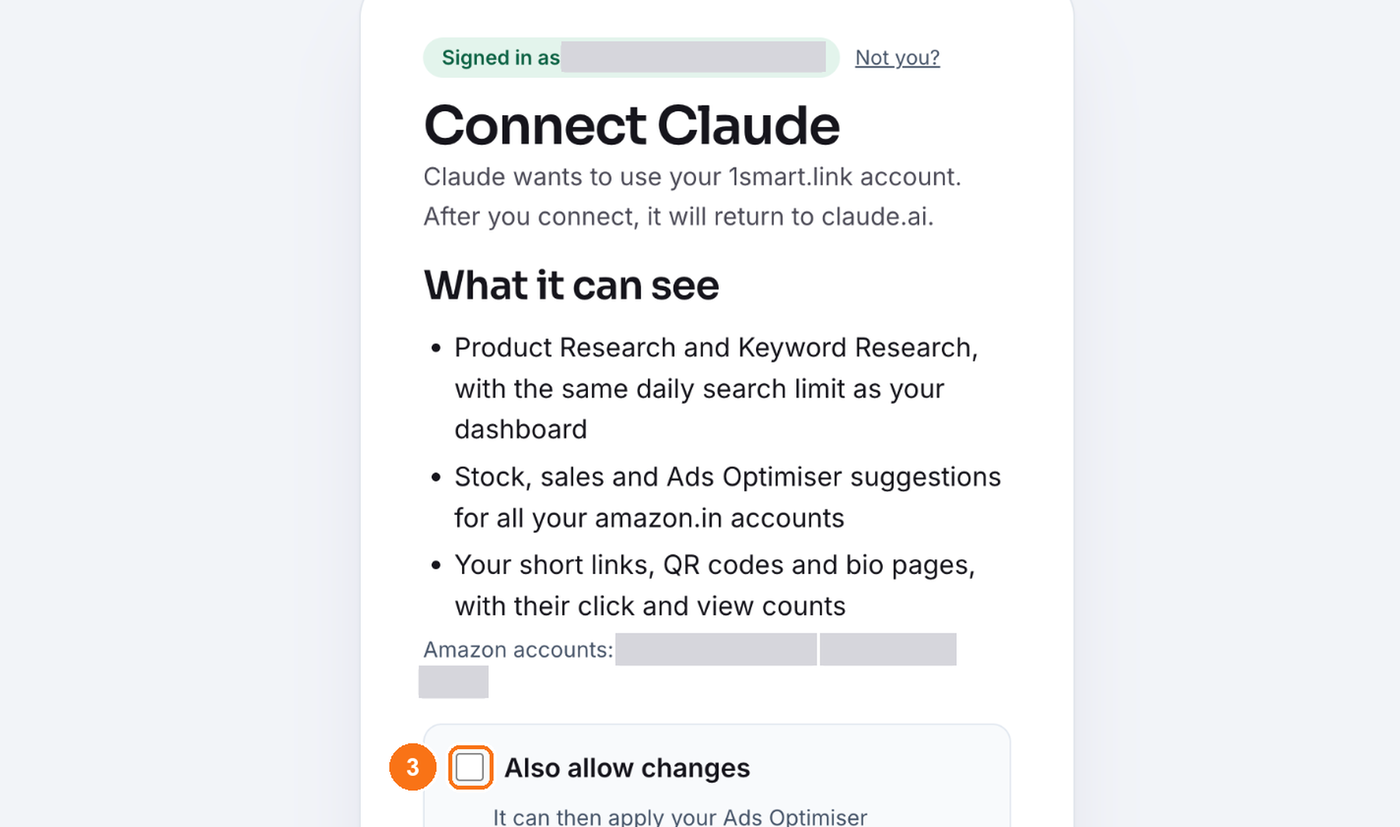
The numbers in the pictures match the numbered steps.
Who can use it
The connector is included with paid plans:
Smart Seller: everything, including Ads Optimiser suggestions, Ads performance, stock, sales, Product Research and Keyword Research for your amazon.in accounts, plus your links, QR codes and bio pages.
Smart Marketing: your short links, QR codes, bio pages, media library, tracking pixels and custom domains.
You'll need a Claude or ChatGPT account whose plan lets you add a custom connector (in ChatGPT it's called a custom MCP server). Set it up on the web or the desktop app first. Afterwards it also works in the phone app on the same account.
Step 1: Copy your connector address
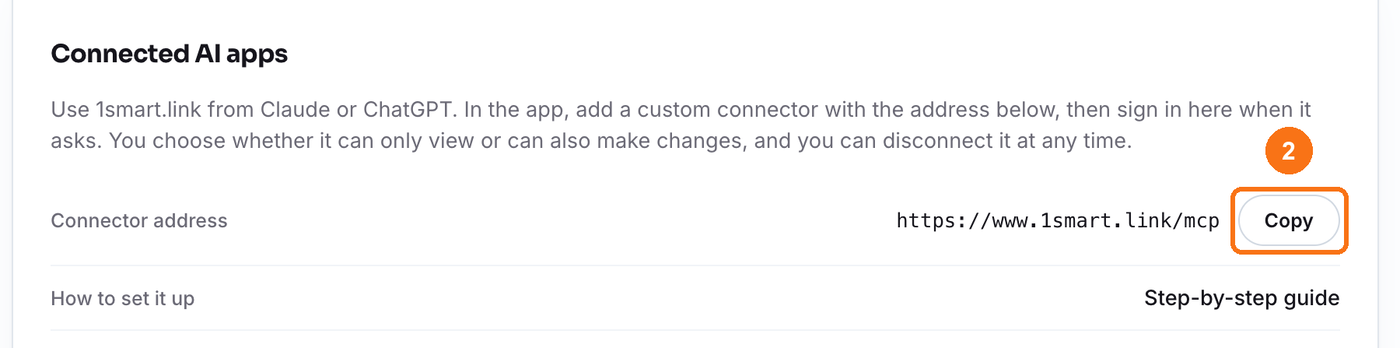
In your 1smart.link dashboard, open Account and find the Connected AI apps card.
Click Copy next to the connector address. It is always
https://www.1smart.link/mcp.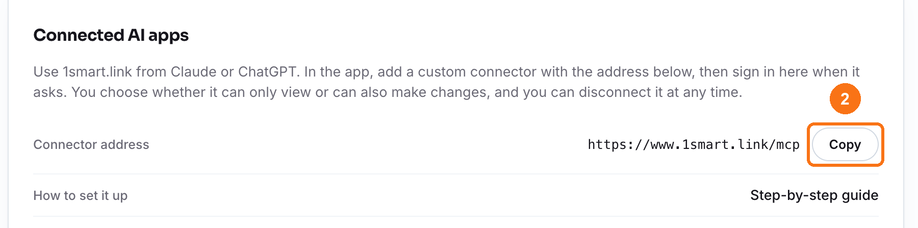
Step 2a: Connect Claude
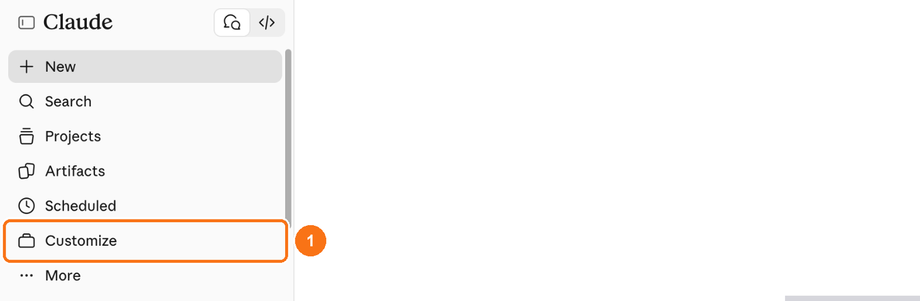
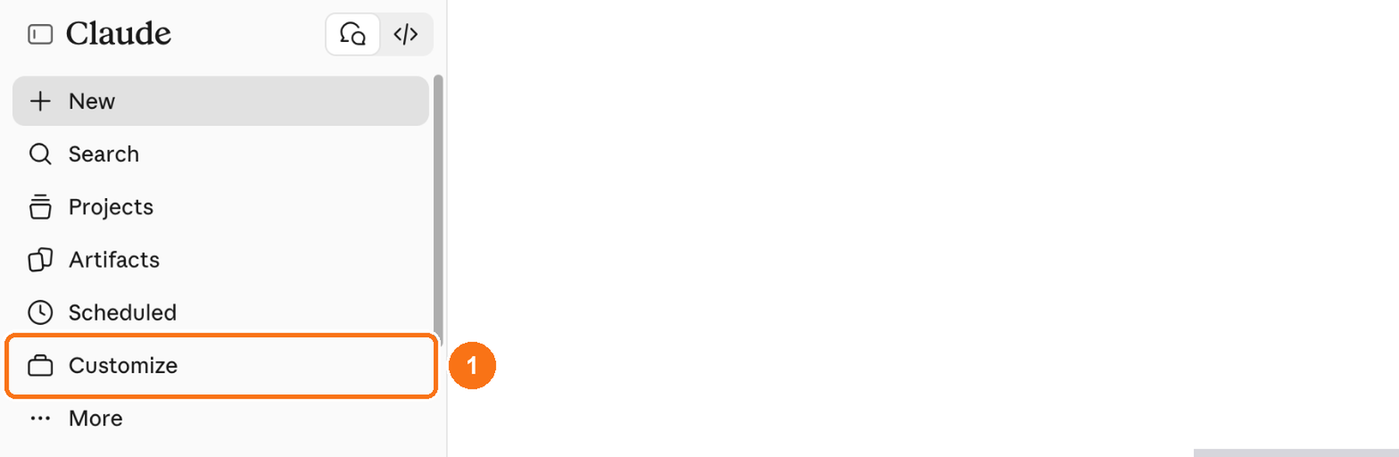
In Claude, open Customize in the left sidebar.
Click Connectors at the top of the page.
Click + Add.

Choose Add custom connector.

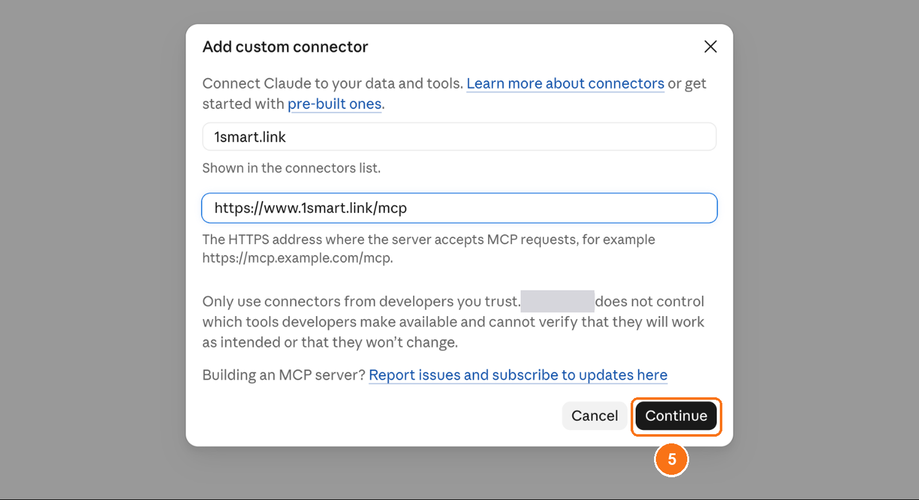
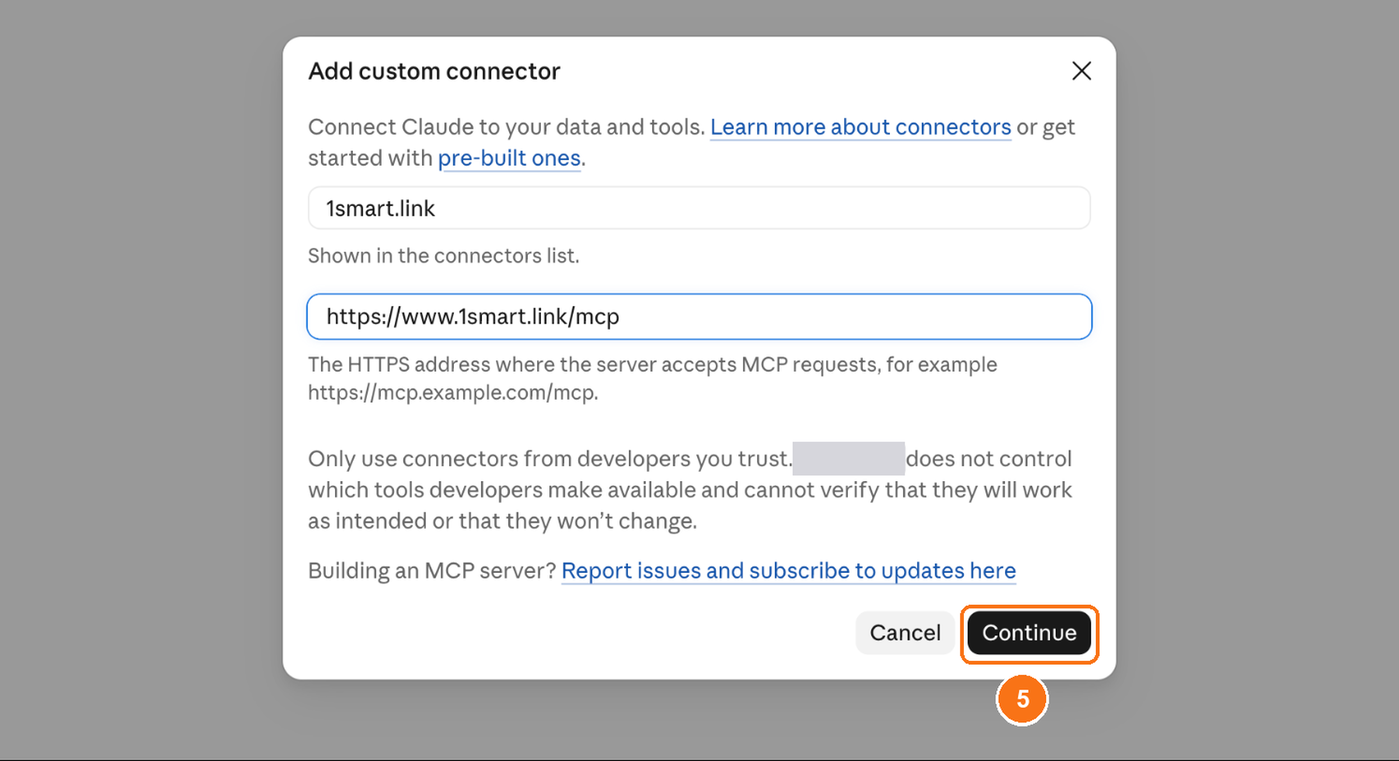
Give it a name, for example 1smart.link, paste the address into the second box, and click Continue.
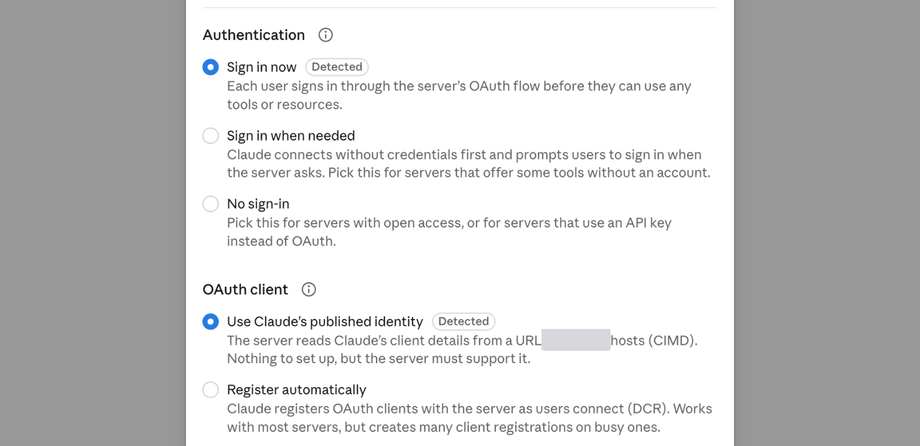
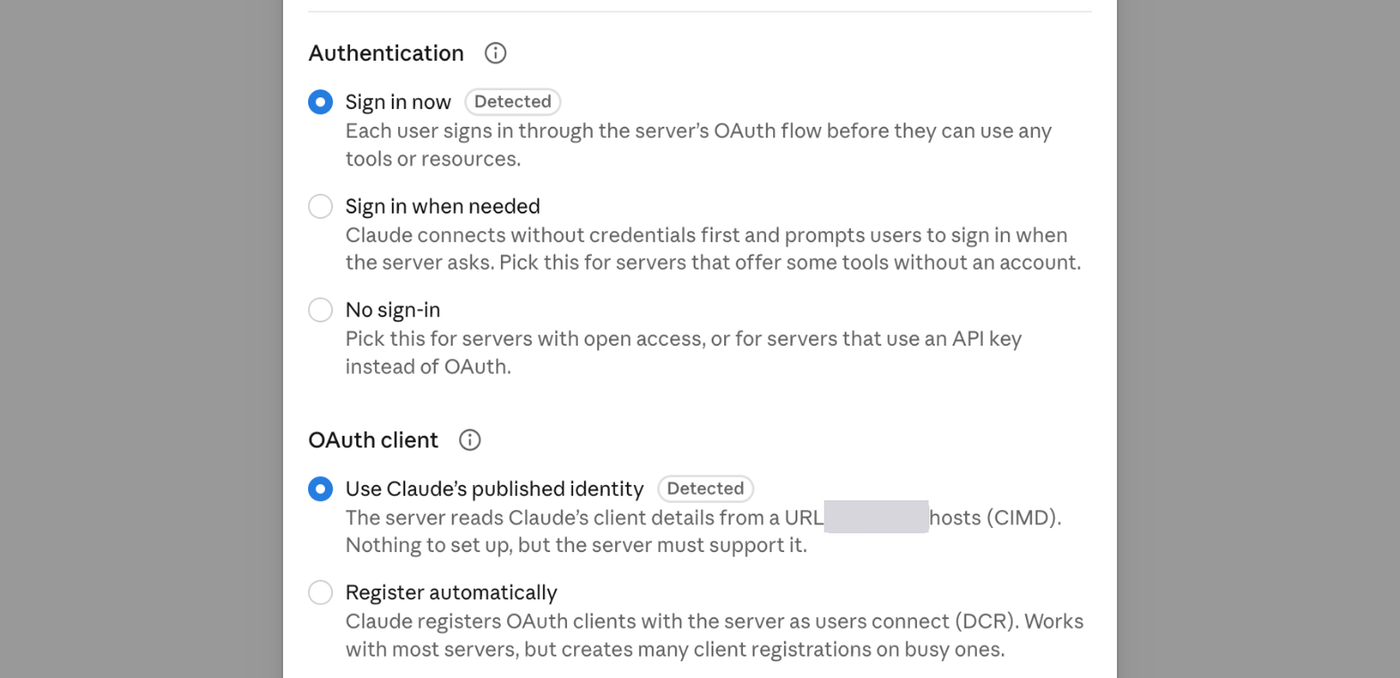
Claude reads our settings and fills in the sign-in options for you. Leave them as they are: Sign in now and Use Claude's published identity, both marked Detected.
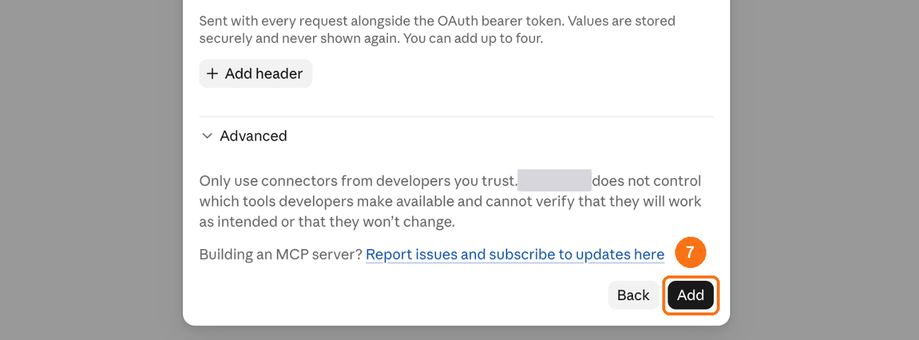
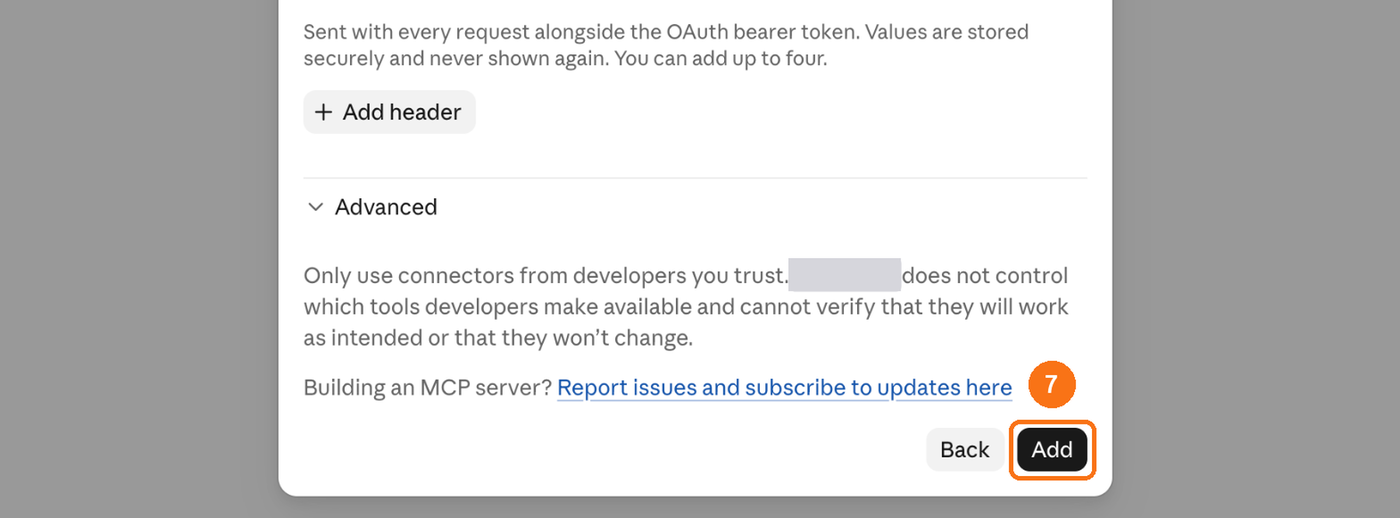
Don't add any request headers, and leave Advanced closed. Click Add.
On the 1smart.link connector page, click Connect.

Our consent page opens. Check it and click Connect (see Step 3 below).
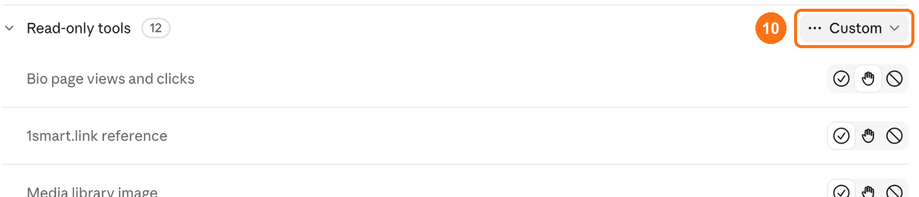
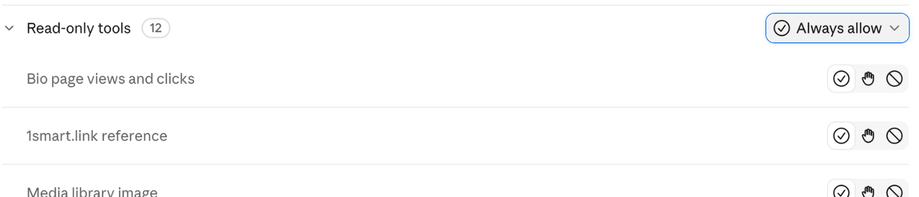
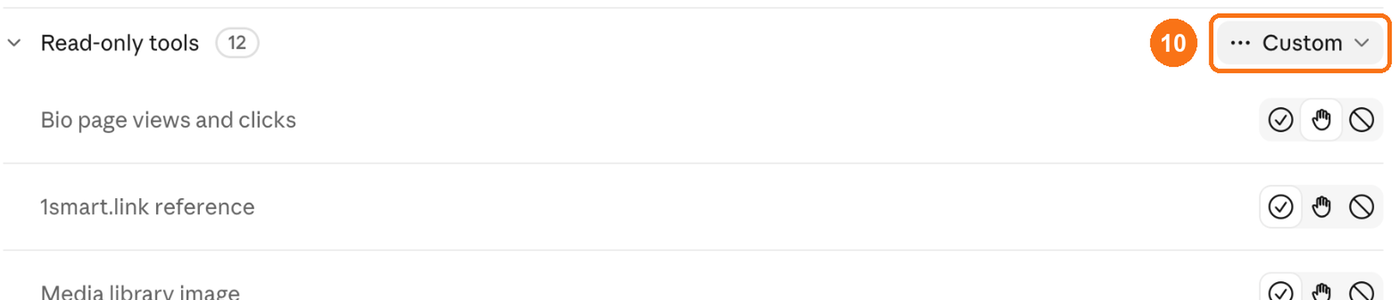
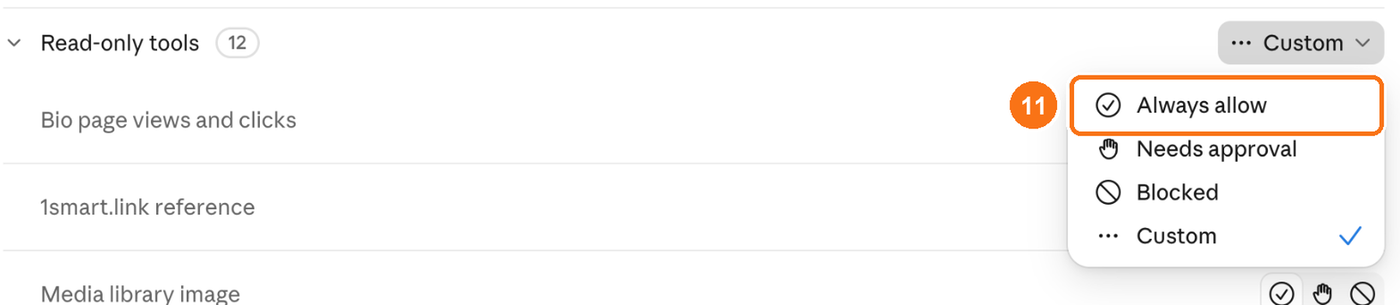
Back in Claude, 1smart.link is connected, and its page lists the tools under Tool permissions, in groups such as Read-only tools and Write/delete tools. To let Claude read your account without asking every time, click the setting next to Read-only tools.
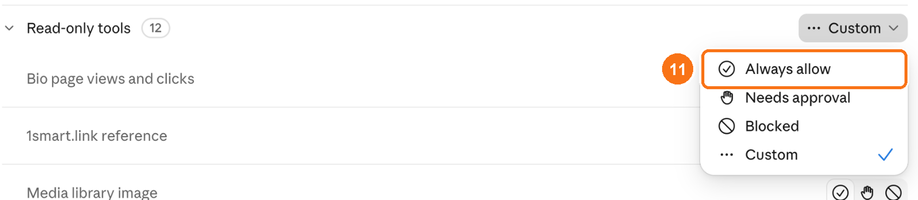
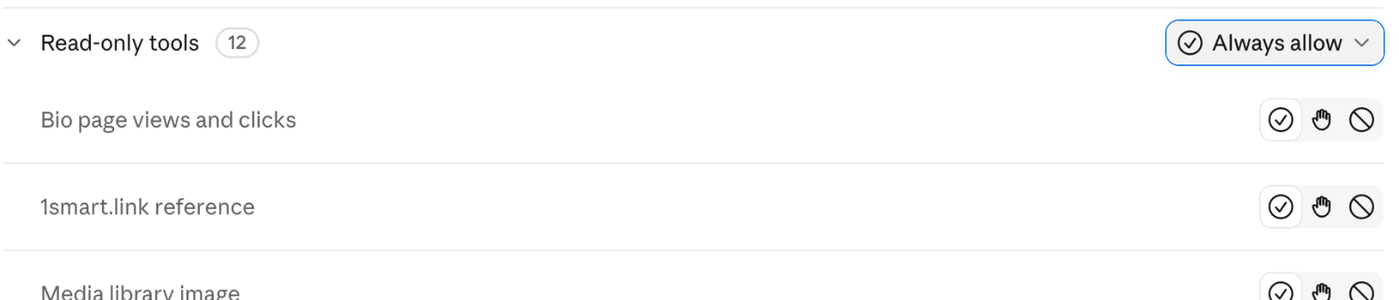
Choose Always allow. Leave the other groups on Needs approval, so Claude asks before it uses a tool that can make changes.



Step 2b: Connect ChatGPT
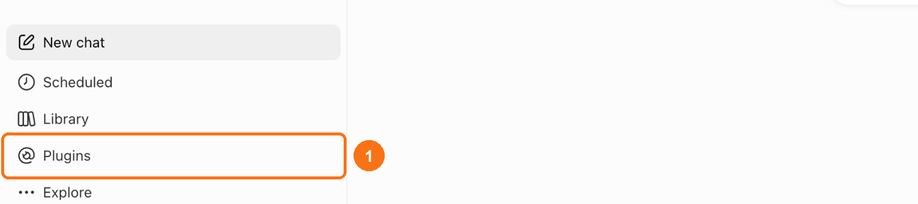
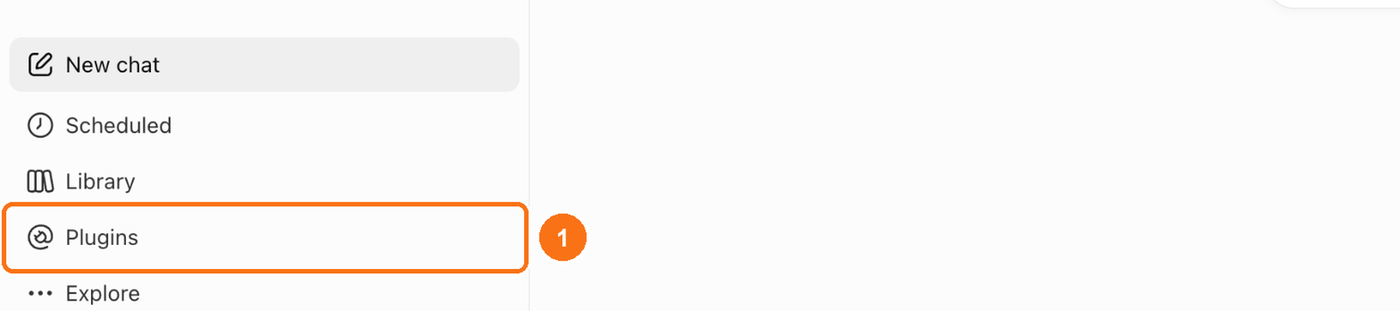
In ChatGPT on the web, open Plugins in the left sidebar.
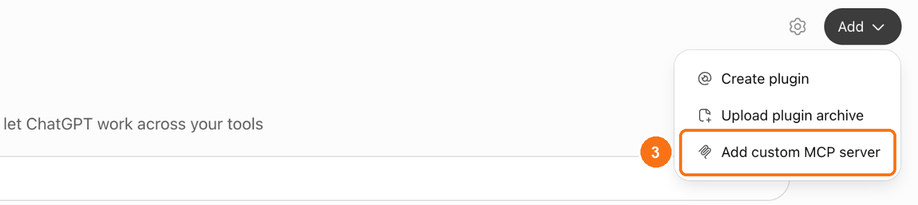
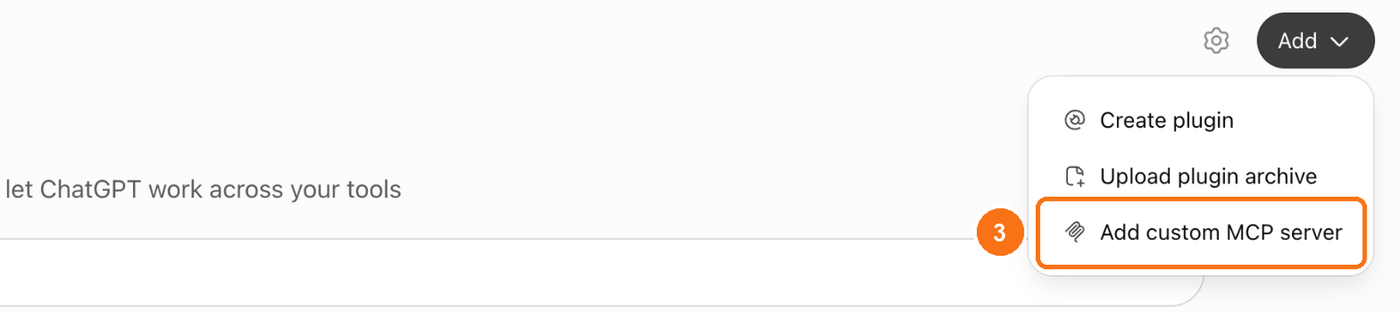
Click Add at the top right.

Choose Add custom MCP server.
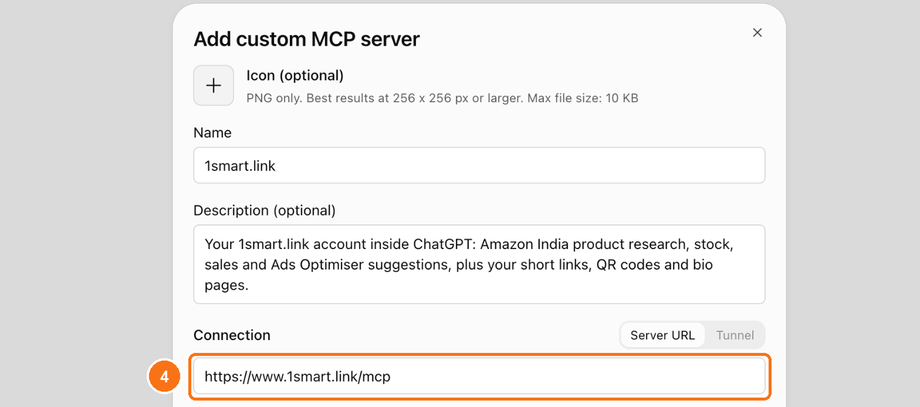
Fill in the form:
- Name: 1smart.link
- Description (optional): Your 1smart.link account inside ChatGPT: Amazon India product research, stock, sales and Ads Optimiser suggestions, plus your short links, QR codes and bio pages.
- Connection: keep Server URL selected and paste the address.
- Authentication: leave it on OAuth and don't open Advanced OAuth settings.
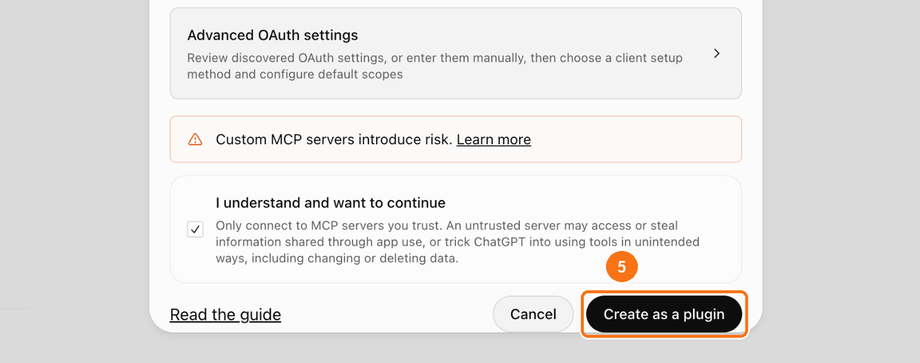
Tick I understand and want to continue, then click Create as a plugin.
ChatGPT shows its own Connect 1smart.link box with a note about data. Click Connect 1smart.link.
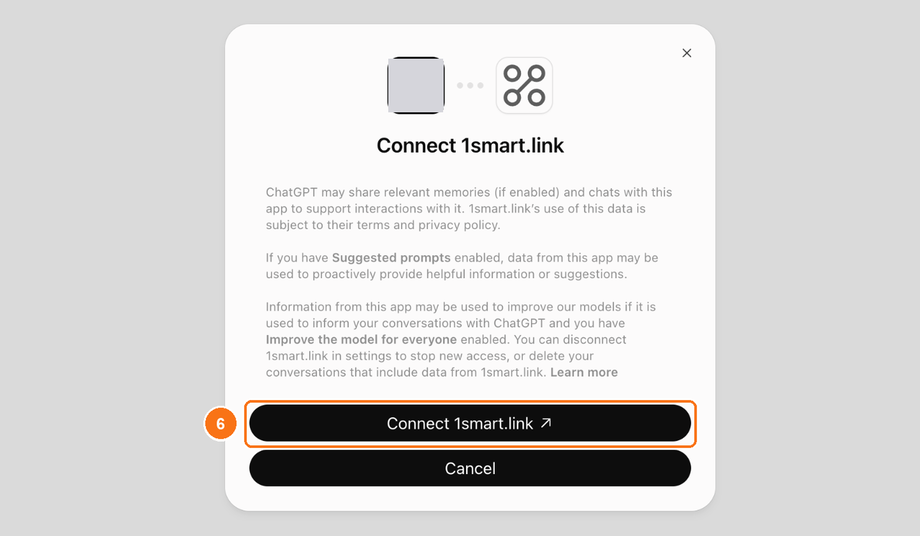
Our consent page opens. Check it and click Connect (see Step 3 below).
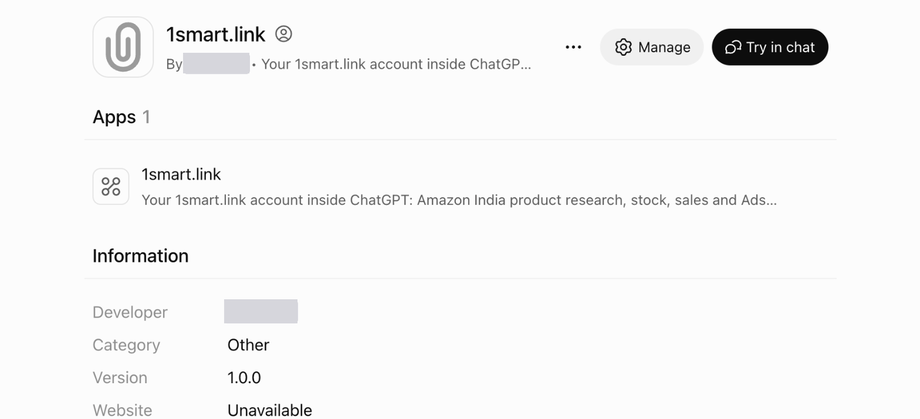
ChatGPT shows the 1smart.link plugin page. Under Information you'll see your own name as the developer: that's normal for a connector you add yourself.

Step 3: Our consent page
At the top it shows Signed in as and your email. If that isn't the 1smart.link account you want to connect, click Not you? and sign in with the right one.
What it can see lists what the app will be able to read for your plan, and your Amazon account names.
Also allow changes is unticked. Tick it only if you want the app to make changes for you: applying your Ads Optimiser suggestions after you confirm, saving products to your shortlist, and creating and editing your links, QR codes and bio pages. It can never delete anything, change your plan or billing, or touch your Amazon connection.
Click Connect.
Step 4: Try it
Start a new chat and ask, for example, "Show my pending Ads suggestions" or "Show my short links".
In ChatGPT: if it doesn't use 1smart.link, click + by the message box and choose 1smart.link.
In Claude: you may be asked to allow each 1smart.link tool before it's used. Choose Allow. You can set the read-only tools to always allow, as in Step 2a.
Changing between view only and changes allowed later
Claude: disconnect 1smart.link in Claude and connect it again, ticking or unticking Also allow changes.
ChatGPT: delete the 1smart.link plugin and add it again.
Then remove the older connection in Account → Connected AI apps, so only the one you use stays listed.